

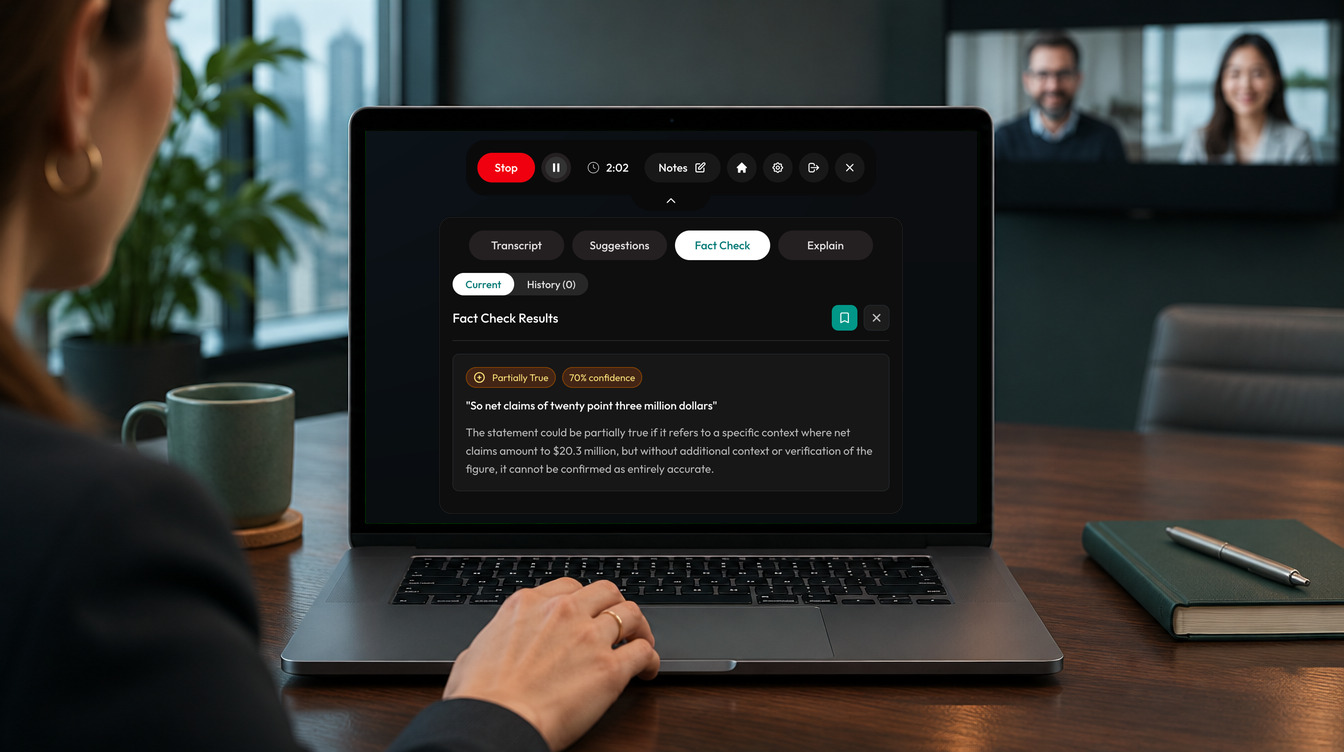
Someone quotes a statistic on a client call. You can ask where it came from, check the source during the meeting, or flag it for follow-up. A live AI fact-check gives you a starting point while that claim is still in context.
Suppose someone says, “Lead conversion is up 20% since last quarter.” If conversion moved from 5% to 6%, that is a 20% relative increase and a one percentage point increase. Confirm that both periods use the same conversion definition and denominator. For an internal claim, ask for the dashboard, report, or underlying data that supports it. A public search cannot establish a private metric on its own.
A practical follow-up sounds like this: “I’m seeing a move from 5% to 6%. Can we confirm whether both numbers include the same lead sources before we use it in the deck?”
If you mainly need written notes, Granola positions itself as a bot-free AI notepad, and Tactiq offers live transcripts through its Chrome extension. If you need to assess a claim while the group can still discuss it, look at how the tool surfaces evidence, handles your meeting setup, and lets you revisit the result. Granola product overview · Tactiq product overview
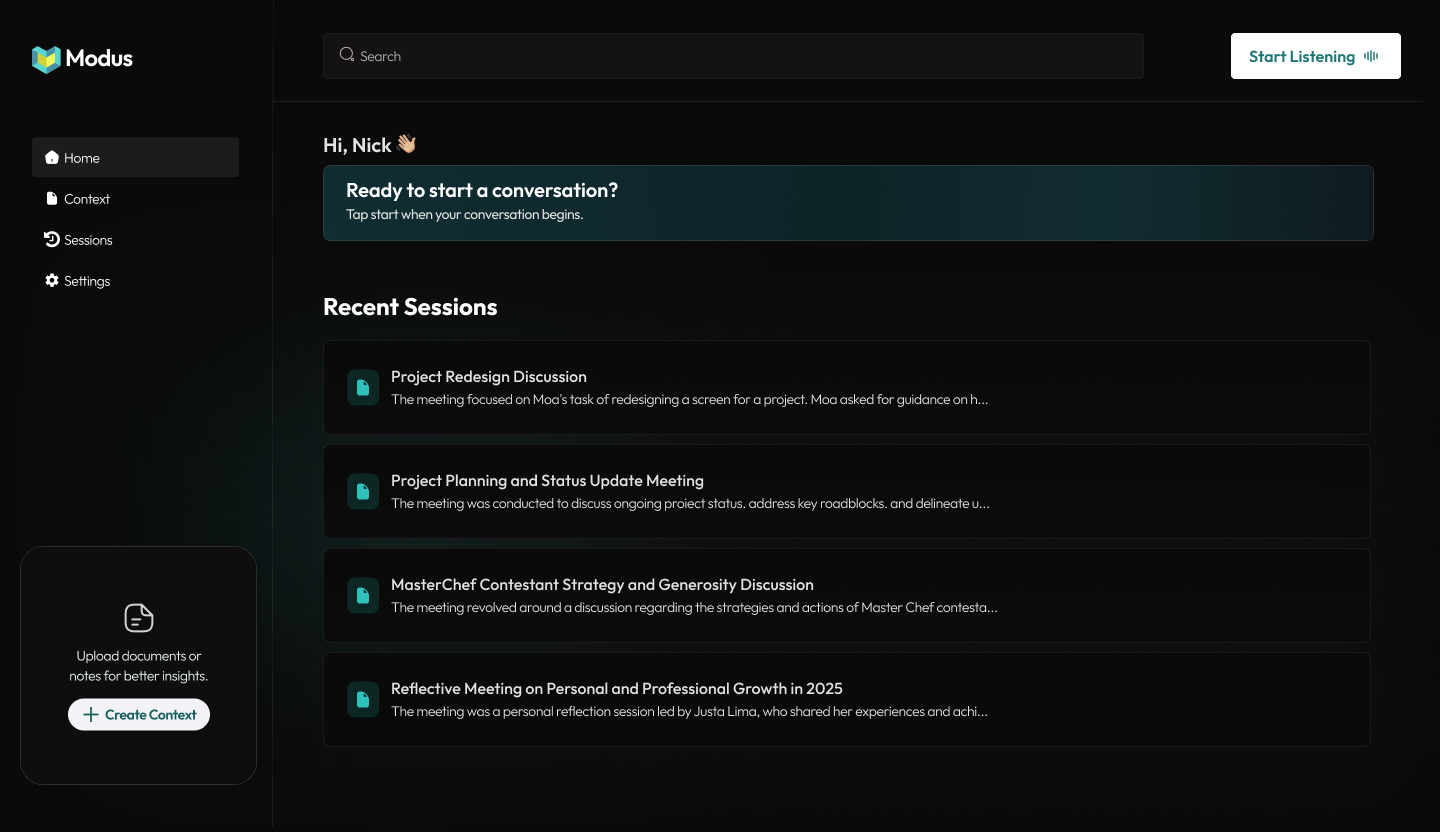
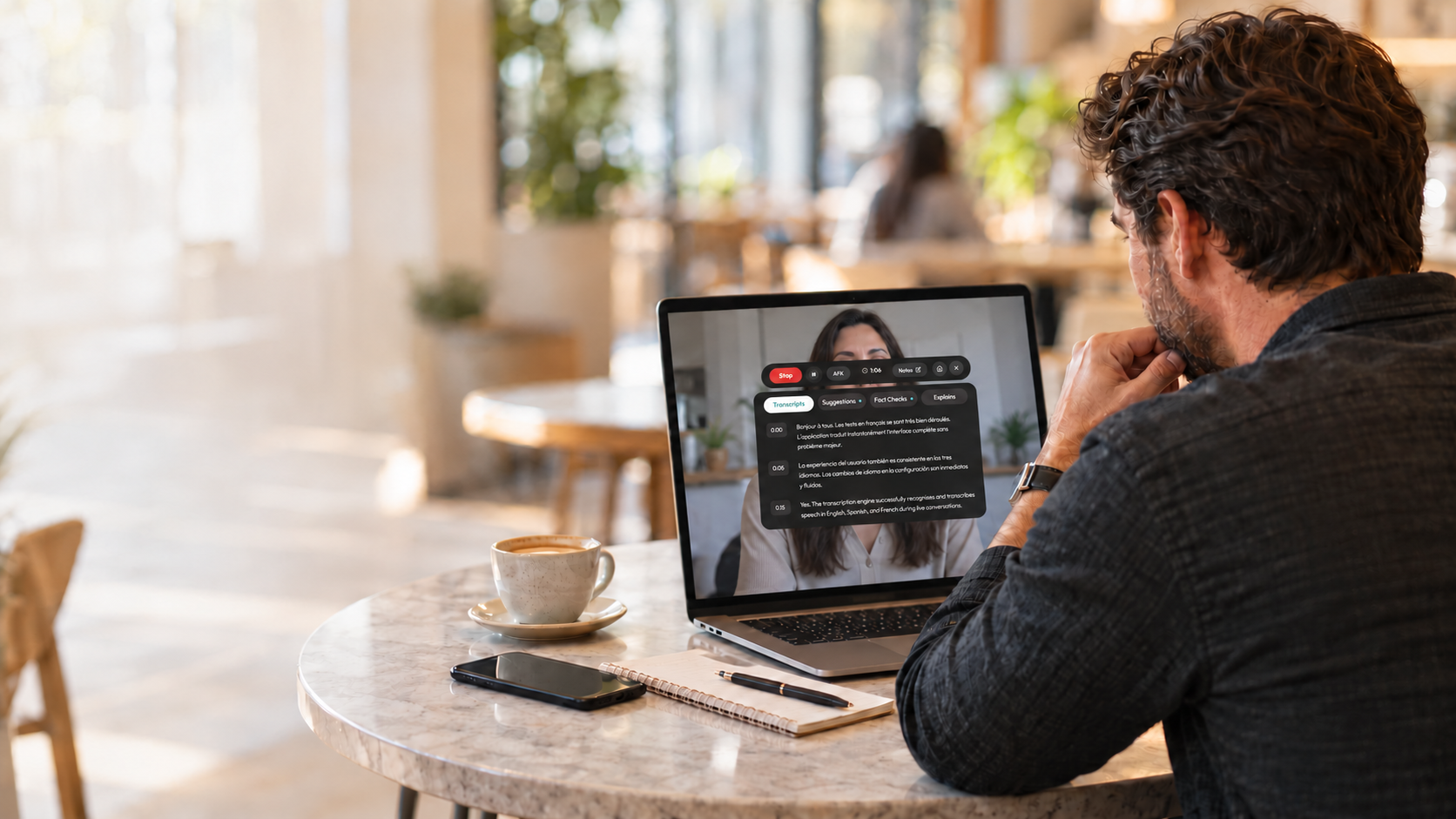
Modus offers live suggestions, Fact Check, and Explain during a session, followed by a meeting summary and action items. It runs without adding a bot to the participant list and does not store raw meeting audio. Follow your organization’s rules for notifying participants and handling meeting information.
Download Modus for your device and try checking one public claim during a practice meeting. See the Modus setup guide to start a session, or read how the bot-free meeting assistant works.


Contact us today to learn how modus can be configured for your specific industry and needs.